
Browser cache helps websites load faster by storing temporary files such as images, stylesheets, scripts, and other website resources on your device. However, these stored files can sometimes become outdated or cause website loading problems. Learning how to clear browser cache can help you troubleshoot website errors, view updated content, and improve your browsing experience.
In this guide, you will learn how to clear browser cache in Google Chrome, Mozilla Firefox, Microsoft Edge, and Safari. We will also cover mobile browsers, keyboard shortcuts, the difference between cache and cookies, and what you should know before deleting temporary browsing data.
What Is Browser Cache?
Browser cache is a temporary storage area used by web browsers to save copies of website resources. When you visit a website, your browser may store images, logos, CSS files, JavaScript files, and other content locally on your device.
When you revisit the same website, the browser can load some of these files from your device instead of downloading them again. This reduces loading time and can help save bandwidth.
For example, when you visit a website several times, your browser may reuse its cached logo and design files. However, if the website owner updates the design, your browser might continue displaying an older version of some files until the cache is refreshed.
Clearing the browser cache removes these stored copies. The browser can then download fresh versions of the files when you visit websites again.
Why Should You Clear Browser Cache?
Clearing browser cache is a useful troubleshooting step when websites do not behave as expected. Here are some common reasons to clear cached data.
1. Fix Website Loading Problems
A website may fail to load correctly because the browser is using outdated or corrupted cached files. Clearing the cache can help the browser download fresh resources and resolve certain display or loading issues.
2. View Updated Website Content
Sometimes, a website owner updates a page, changes its design, or fixes a technical issue, but your browser continues showing an older version. Clearing the cache may help you see the latest version of the website.
3. Resolve Display and Formatting Errors
Outdated CSS or JavaScript files can sometimes cause broken layouts, missing images, or buttons that do not work properly. Clearing the cache can help resolve these issues if cached files are the cause.
4. Troubleshoot Browser Performance
A large cache is not necessarily a problem, because browsers are designed to manage cached files automatically. However, clearing the cache can be a useful troubleshooting step when a website behaves unusually or browser storage needs to be refreshed.
5. Protect Your Privacy on Shared Devices
Cached files can contain locally stored copies of website resources. Clearing the cache removes these copies from the browser’s cache storage, but it does not remove all browsing traces or replace the need to clear history, cookies, or other data when appropriate.
How to Clear Browser Cache in Google Chrome
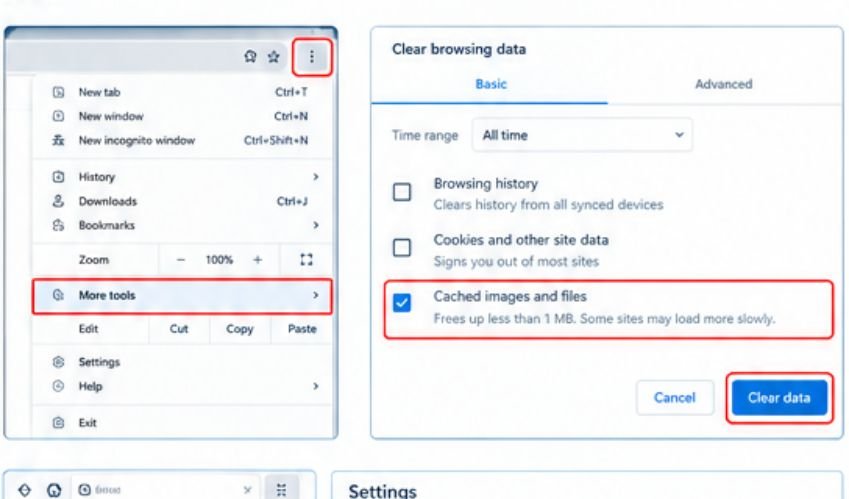
Google Chrome is one of the most widely used browsers on desktop and mobile devices. Follow these steps to clear its cached files.
Step 1: Open Google Chrome
Launch Chrome on your Windows computer, Mac, or Chromebook.
Step 2: Open the Clear Browsing Data window
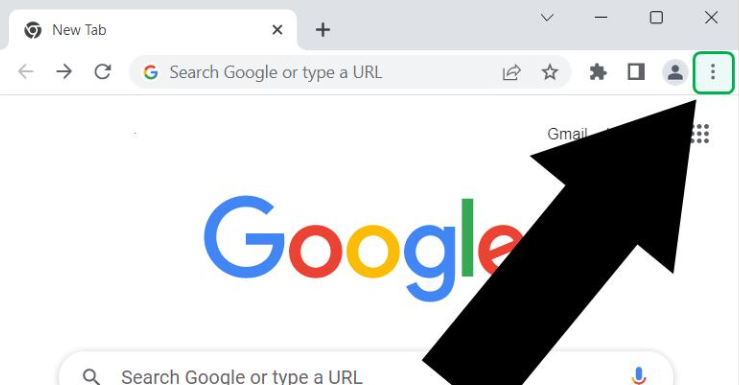
Click the three-dot menu in the top-right corner of the browser. Select Delete browsing data or navigate through the browser menu to the corresponding browsing-data option. The exact wording may vary by version.
You can also use the keyboard shortcut:
- Windows and Linux:
Ctrl + Shift + Delete - Mac:
Command + Shift + Delete
Step 3: Select the time range
Choose the time range for which you want to clear data. Common options include Last hour, Last 24 hours, Last 7 days, Last 4 weeks, and All time.
If you want to remove all cached files currently stored by Chrome, select All time.
Step 4: Select Cached images and files
In the browsing-data window, select Cached images and files.
If you only want to clear the cache, leave Cookies and other site data and Browsing history unchecked. Selecting cookies may sign you out of websites or remove some saved site preferences.
Step 5: Clear the cache
Click Delete data to complete the process. Wait for Chrome to finish clearing the selected files.
Step 6: Reload the website
Return to the website that was experiencing problems and reload the page. Chrome can download fresh copies of the resources it needs.
How to Clear Browser Cache in Mozilla Firefox
Mozilla Firefox provides a straightforward way to clear cached web content through its privacy settings.
Step 1: Open Firefox
Launch Mozilla Firefox on your computer.
Step 2: Open Settings
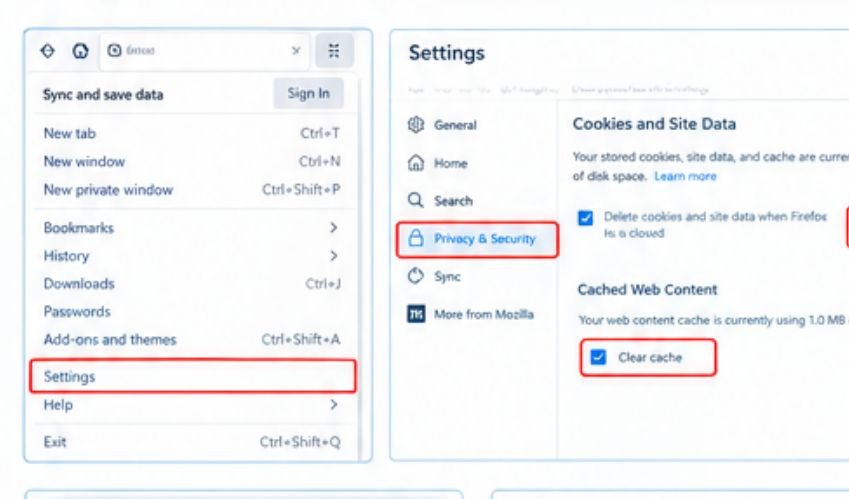
Click the three-line menu in the top-right corner and select Settings.
Step 3: Go to Privacy & Security
Select Privacy & Security from the left-hand navigation menu.
Step 4: Find Cookies and Site Data
Scroll down to the Cookies and Site Data section. Click Clear Data.
Step 5: Select Cached Web Content
In the dialog box, select Cached Web Content. If you want to clear only the cache, avoid selecting cookies and site data unless you also want to remove that information.
Step 6: Clear the data
Click Clear and wait for Firefox to finish the process.
Open the affected website again and check whether the issue has been resolved.
How to Clear Browser Cache in Microsoft Edge
Microsoft Edge is based on Chromium and has a browsing-data management feature similar to Google Chrome.
Step 1: Open Microsoft Edge
Launch Edge on your Windows computer or Mac.
Step 2: Open Settings
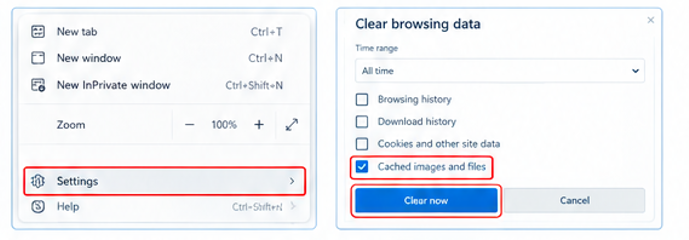
Click the three-dot menu in the top-right corner and choose Settings.
Step 3: Select Privacy, Search, and Services
Open Privacy, search, and services from the Settings menu.
Step 4: Find Clear Browsing Data
Locate the section for clearing browsing data. Click Choose what to clear.
Step 5: Choose the time range and cached files
Select your preferred time range. To remove all cached files, choose All time.
Check Cached images and files. Leave other options unchecked if you do not want to remove browsing history, cookies, or other saved data.
Step 6: Click Clear Now
Click Clear now and wait for the process to finish.
Reload the affected website to check whether the problem has disappeared.
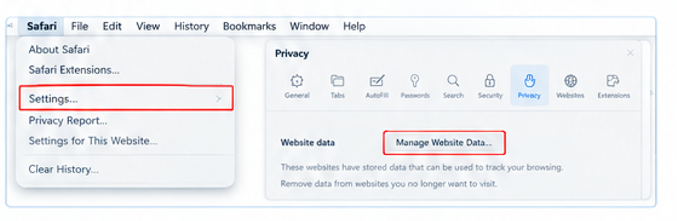
How to Clear Browser Cache in Safari on Mac
Safari handles cached website resources differently from Chrome and Edge. On modern versions of macOS, you can remove website data through Safari’s privacy settings.
Step 1: Open Safari
Launch Safari on your Mac.
Step 2: Open Safari Settings
From the menu bar at the top of the screen, click Safari and select Settings. In some older versions, this option may be called Preferences.
Step 3: Open the Privacy tab
Select Privacy in the Settings window.
Step 4: Manage Website Data
Click Manage Website Data. Safari will display website data stored on your device.
Step 5: Remove website data
You can select individual websites and click Remove, or use Remove All to remove all listed website data.
Be aware that this setting can remove more than cached files, including data that websites use to remember preferences or sessions.
Step 6: Reload the website
Close the settings window and revisit the website. Safari can download the resources it needs again.
Alternative method: If you want to clear Safari’s cache without removing other website data, you may be able to use the Develop menu’s Empty Caches option. To enable the Develop menu, open Safari Settings, go to Advanced, and enable the option to show web developer features. The exact label varies by Safari version.
How to Clear Browser Cache on Android
You can clear cached files in Google Chrome on an Android phone or tablet without uninstalling the browser.
Step 1: Open Chrome
Launch Chrome on your Android device.
Step 2: Open the browser menu
Tap the three-dot menu near the top-right corner.
Step 3: Select Delete browsing data
Tap Delete browsing data. Depending on the version, you may need to open History first and then choose the delete-data option.
Step 4: Select the time range
Choose a time range, such as Last 24 hours or All time.
Step 5: Select Cached images and files
Make sure the cache option is selected. Leave cookies unchecked if you want to avoid signing out of websites.
Step 6: Confirm deletion
Tap Delete data and confirm if prompted.
Open the website again to see whether the issue has been resolved.
Screenshot placement: Use a screenshot of Chrome on Android showing Delete browsing data and the Cached images and files checkbox.
How to Clear Browser Cache on iPhone
On an iPhone, the steps depend on whether you use Safari or Google Chrome.
Clear Safari Cache on iPhone
Step 1: Open the Settings app on your iPhone.
Step 2: Open Apps > Safari. On older iOS versions, Safari may appear directly in the main Settings list.
Step 3: Tap Clear History and Website Data.
Step 4: Choose the appropriate time range if your iOS version offers that option, then confirm.
This action removes browsing history and website data as well as relevant cached data, so it is not a cache-only operation. It may also sign you out of websites.
Clear Chrome Cache on iPhone
Step 1: Open the Google Chrome app.
Step 2: Tap the menu button and select Delete Browsing Data. If the option is not immediately visible, open History and look for the delete-data command.
Step 3: Choose the time range.
Step 4: Select Cached Images and Files. Leave other data types unchecked if you want to preserve them.
Step 5: Tap Delete Browsing Data and confirm.
Screenshot placement: Include one screenshot showing Safari’s website-data controls and another showing Chrome’s Delete Browsing Data screen on iPhone.
How to Clear Browser Cache Using Keyboard Shortcuts
If you need to clear the cache frequently, keyboard shortcuts can save time.
| Browser | Windows or Linux | Mac |
|---|---|---|
| Google Chrome | Ctrl + Shift + Delete | Command + Shift + Delete |
| Microsoft Edge | Ctrl + Shift + Delete | Command + Shift + Delete |
| Mozilla Firefox | Ctrl + Shift + Delete | Command + Shift + Delete |
| Safari | No universal cache-only shortcut | Use Safari’s menus or Develop > Empty Caches if enabled |
These shortcuts generally open a browsing-data dialog rather than immediately deleting files. You still need to select the appropriate data types and confirm the action.
What Is the Difference Between Browser Cache and Cookies?
Browser cache and cookies are different types of browser data, even though both can be cleared through similar settings.
| Feature | Browser Cache | Cookies |
|---|---|---|
| Main purpose | Stores copies of website resources | Stores information about sessions and website preferences |
| Examples | Images, scripts, stylesheets | Login sessions, preferences, identifiers |
| Effect of clearing | Websites may need to download resources again | You may be signed out or lose saved site preferences |
| Does it usually delete saved passwords? | No | No, unless another option is selected |
If your goal is to fix an outdated page or a broken website layout, start by clearing the cache only. If you are troubleshooting login or session problems, clearing cookies for the affected website may help, but it can also sign you out.
What Should You Do If Clearing the Cache Does Not Work?
Clearing the cache can fix many website display issues, but it is not a solution for every browser problem. If the issue continues, try the following steps.
1. Perform a Hard Refresh
A hard refresh asks the browser to reload a page’s resources rather than relying on its usual cached copies.
- Windows: Try
Ctrl + Shift + RorCtrl + F5in supported browsers. - Mac: Try
Command + Shift + Rin supported browsers.
The exact shortcut and behaviour can vary by browser.
2. Test the Website in a Private Window
Open the website in an Incognito or Private Browsing window. If it works there, an extension, cookie, or existing browser session may be contributing to the issue.
Private browsing does not guarantee that every cache-related problem will be avoided.
3. Disable Browser Extensions Temporarily
Some extensions can interfere with website scripts, layouts, or login processes. Disable extensions temporarily and reload the page to check whether the problem changes.
4. Check Your Internet Connection
A slow or unstable internet connection can cause pages to load incompletely. Test other websites and restart your network connection if necessary.
5. Update Your Browser
An outdated browser can have compatibility or security issues. Install available updates and restart the browser before testing the website again.
6. Check the Website Itself
The issue may be caused by the website’s server, content delivery network, scripts, or recent code changes. If the same problem appears across multiple browsers and devices, the website itself may need investigation.
How Often Should You Clear Browser Cache?
There is no fixed schedule for clearing browser cache. Modern browsers manage cached files automatically, and keeping the cache can improve loading performance.
Clear the cache when you encounter outdated website content, display errors, or problems that may be caused by stored resources. If your browser is working normally, you generally do not need to clear the cache every day or every week.
For website developers and SEO professionals, clearing the cache or performing a hard refresh can be useful when checking updated layouts, CSS changes, scripts, or page elements. However, browser cache is only one possible cause of outdated content; a website’s server cache or CDN may also need to be refreshed.
Frequently Asked Questions
Does clearing browser cache delete passwords?
No. Clearing only cached images and files normally does not delete saved passwords. However, always review the selected options before confirming, because some browsers provide separate controls for passwords and other browsing data.
Will clearing the cache log me out of websites?
Clearing only cached files usually does not log you out. Clearing cookies and other site data can end active sessions and require you to sign in again.
Does clearing browser cache improve speed?
It can help resolve certain performance or display problems, but it does not automatically make every browser faster. The first visit after clearing the cache may take longer because resources need to be downloaded again.
Is it safe to clear browser cache?
Yes. Clearing cached files is generally safe. Websites can download the required resources again when you revisit them. The main consideration is to avoid selecting other data types unintentionally.
What is the fastest way to clear browser cache?
On many desktop browsers, press Ctrl + Shift + Delete on Windows or Linux, or Command + Shift + Delete on Mac. Select the cached-files option, choose a time range, and confirm.
Should I clear cache or cookies first?
If a website displays outdated content or has layout issues, try clearing the cache first. If you are experiencing login or session problems, cookies may be relevant. Remember that clearing cookies can sign you out.
Conclusion
Knowing how to clear browser cache can help you troubleshoot outdated website content, loading errors, and certain display problems. Google Chrome, Mozilla Firefox, Microsoft Edge, and Safari all provide ways to remove cached data, although the exact steps differ between browsers and devices.
For most website issues, start by clearing cached images and files while leaving cookies and browsing history untouched. If the problem continues, try a hard refresh, test the website in a private window, disable extensions temporarily, and check whether the website itself is experiencing technical issues.
By choosing the right browser-data options, you can refresh website content without unnecessarily deleting other information stored in your browser.